

5 Salesforce Customizations That Made a Real Impact
Welcome back to our ongoing series on Salesforce customization for higher education. In this post, we dive into the custom solutions that helped our university teams tailor Salesforce to the real needs of faculty, staff, and student services. If you’ve been following along, you know that in Part 1 we unpacked lessons from the initial deployment, and in Part 2, we covered how we supported faculty and staff post-go-live.
Now, in Part 3, we’re getting into the hands-on part: the customizations. Because let’s be honest—out-of-the-box Salesforce doesn’t quite cut it in higher education. Different departments have different needs, and that means tailoring the system to work for your people.
Here are five customizations that helped us turn Salesforce from a generic CRM into a tool our teams actually wanted to use.
1. Custom Record Types by Department
Let’s start with the basics. Advising teams across departments—Academic, PCS (Professional & Continuing Studies), and GSAS (Graduate School of Arts & Sciences)—all work differently. So why make them use the same record layout?
What we did:
We created specific record types for:
Academic Advising Notes
PCS Advising
GSAS Notes & Alerts
This let us control which fields, workflows, and reports each team saw. It made the experience more relevant and way less cluttered.
???? Pro Tip:
Structure your record types around how your teams actually work. It makes life easier for everyone.
2. Personalized Homepages for Each Profile
We realized early on that not all users need the same dashboard. In fact, showing everyone the same thing only created confusion.
What we did:
We built different homepage layouts based on user roles:
PCS Advisors: Task shortcuts, alerts, and note-taking tools front and center
GSAS Advisors: Focused layout with alerts and student info
Faculty: Clean and minimal, just Chatter and course-related notes
This small change made a big difference in productivity. Users could get in, do what they needed, and move on.
???? Pro Tip:
Design homepages based on your users’ daily flow. The fewer clicks, the better.
3. Notes Component With Built-In Sharing Controls
Let’s talk data privacy. In a university setting, it’s everything. The standard Salesforce Notes component wasn’t enough for us—so we built our own.
What we did:
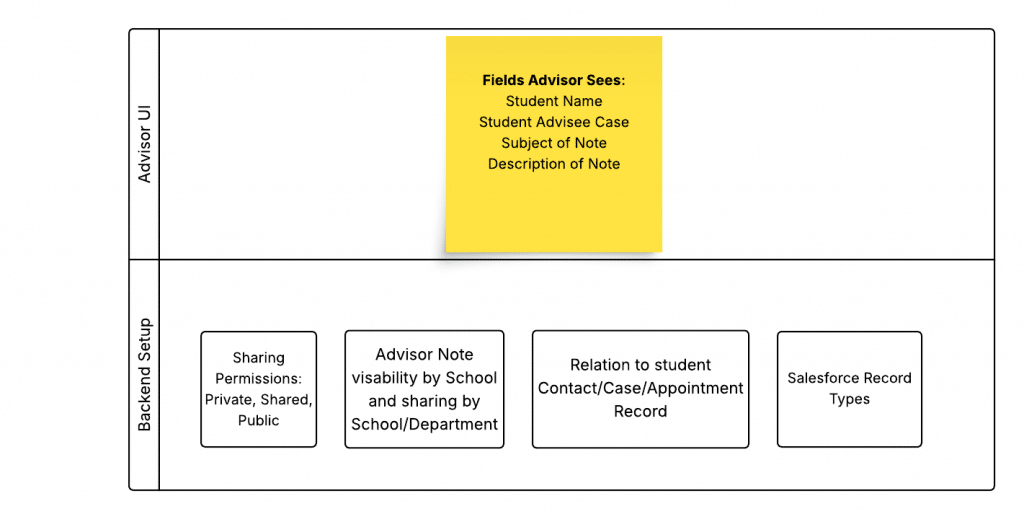
We created a custom Notes Composer with:
A sharing-level dropdown to control visibility
An auto-filled “School Text” field for quick categorization
Record type tagging for easy access control
This gave users peace of mind that sensitive notes would only be seen by the right people.
To give you a clearer picture of how this custom feature works, here’s a simple architecture diagram we used to guide the build:
???? Pro Tip:
Don’t leave data privacy up to chance. Build in controls that reflect your institution’s policies.
4. Streamlined Navigation for Each Role
Ever log into a new tool and get lost in a sea of menus you don’t need? Our faculty and advisors felt the same way.
What we did:
We trimmed the navigation menus for each user group.
For example:
PCS Advisors only saw students, notes, and alerts
Faculty had just Chatter and Notes—nothing more
By removing tools like Availability Pools and Analytics tabs for users who didn’t need them, we made the platform easier to navigate and less intimidating.
???? Pro Tip:
If your users don’t use it, lose it. A simpler menu = happier users.
5. Visual Flows to Automate the Tedious Stuff
We all have those tasks that eat up time but don’t require much brainpower. That’s where automation comes in.
What we did:
We built Visual Flows to handle things like:
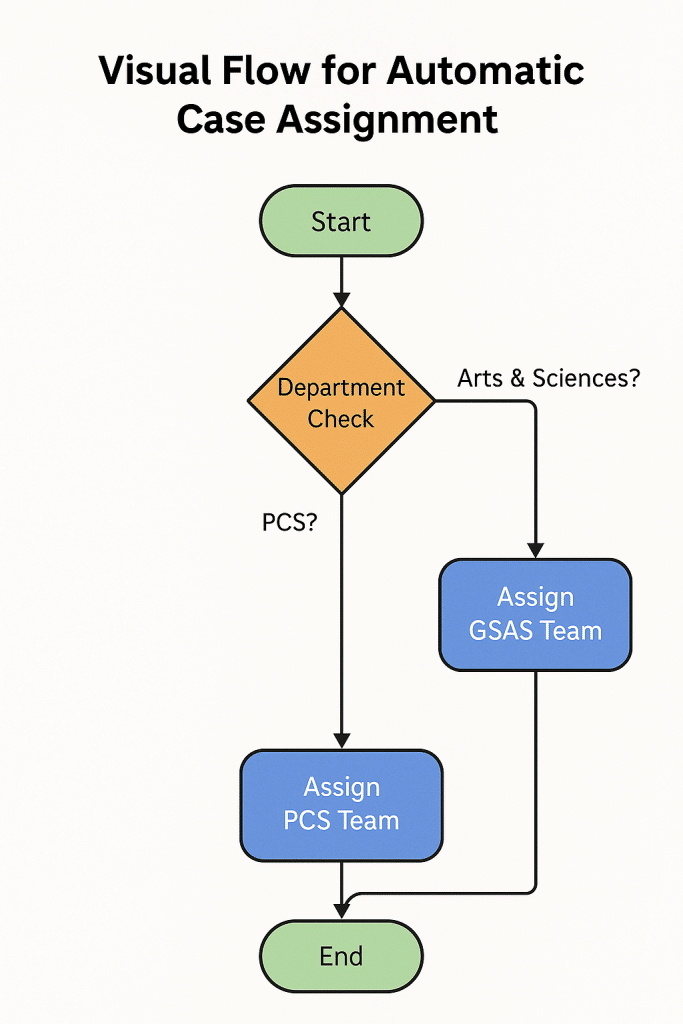
Automatically assigning case teams based on department
Determining who should see specific student notes
Auto-populating fields like school and program
These automations cut down on manual work and reduced errors across the board.
Here’s a simplified visual example of how our case assignment flow works:
???? Pro Tip:
Start by identifying repetitive tasks—and then automate the heck out of them.
This flow automatically checks the student’s department and routes the case to the appropriate advising team—PCS or GSAS. One less thing for staff to think about!
Final Thoughts: It’s All About the Fit
Final Thoughts: It’s All About the Fit
At the end of the day, Salesforce is only as good as you make it. The more we tailored it to match the real needs of our university teams, the more valuable it became. From simplifying navigation to strengthening privacy controls, these five customizations helped us create a platform people actually wanted to use.
Up next: In Part 4, we’ll talk about what we did to prep for go-live—and what we wish we had known beforehand.
We’d Love to Hear From You
What Salesforce customizations have made a difference in your organization? Drop your thoughts in the comments—we’re always learning from others in the field!