
Managing CRM integration frameworks is about keeping your systems connected and running smoothly. Here’s what you need to know:
- Why It Matters: CRM integrations link your CRM to tools like marketing platforms and billing systems. Without proper upkeep, data errors, silent failures, and inefficiencies can cost businesses millions annually.
- Key Steps:
- Monitor Performance: Track metrics like sync success rates and error volumes. Use dashboards and set alerts for issues like API limits or token expirations.
- Ensure Data Quality: Standardize data formats, remove duplicates, and enforce validation rules to prevent bad data from disrupting workflows.
- Handle Errors Quickly: Check error logs, group issues by type, and resolve conflicts using field-level sync rules.
- Stay Updated: Regularly install software updates, test integrations in sandbox environments, and ensure scalability for growing data loads.
- Train Teams: Conduct quarterly training and audits to ensure users follow best practices and systems align with business goals.
Proper maintenance ensures your CRM integration remains reliable, saves time, and avoids costly disruptions. Whether you’re a startup or an enterprise, consistent upkeep is the key to smooth operations.
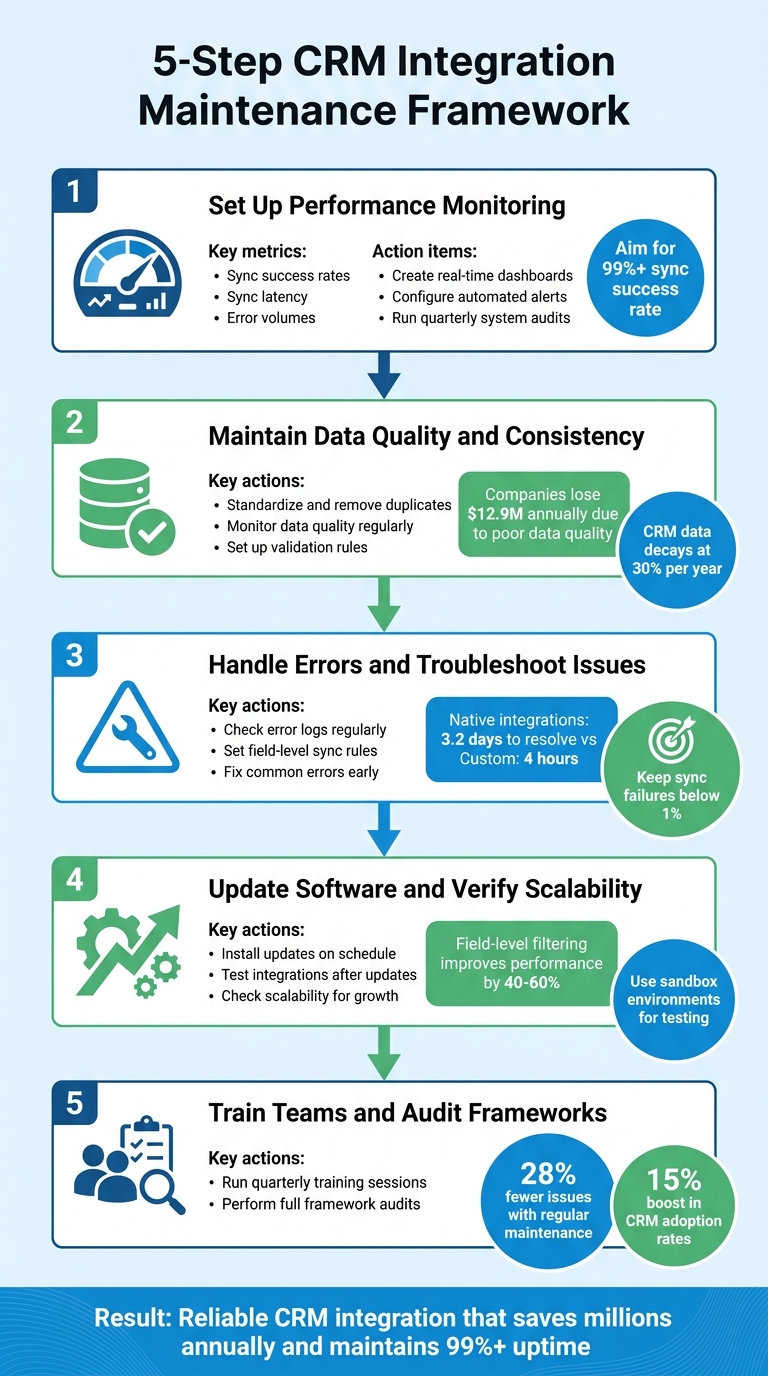
5-Step CRM Integration Maintenance Framework
The 3 Biggest CRM Integration Mistakes (And How to Avoid Them)
sbb-itb-f02ae4e
Step 1: Set Up Performance Monitoring
Performance monitoring is your early warning system for integration issues. Without it, problems can go unnoticed until they disrupt workflows or someone reports missing data.
"An integration without monitoring is an integration you won’t know is broken until someone complains" [1].
The focus should be on tracking integration-specific metrics rather than general system stats. Key metrics include sync success rates, sync latency (how quickly changes in one system appear in another), and error volumes broken down by type (e.g., authentication errors, rate limits, and timeouts) [1]. For example, Salesforce Enterprise editions limit API calls to 100,000 per day. To avoid hitting this cap, set alerts when usage reaches 60% of the daily limit [1].
Create Real-Time Dashboards
Dashboards help transform metrics into actionable insights. These should pull live data from your CRM and integration layers, ensuring there’s no delay in identifying issues [7][8]. Place critical metrics, like sync success rates, in the top-left corner for immediate visibility [7]. Use color-coded indicators to highlight issues – failed sync jobs could be marked in red, making it easy to assess the problem at a glance [2].
Another valuable feature is a "quarantine queue", which lists records that failed to sync due to missing required fields [1]. This reduces the risk of silent data loss and provides a daily task list for your team. Adjust dashboard refresh rates based on urgency: for example, activity metrics might update every 15–30 minutes, while broader summaries can refresh daily [7]. To improve integration speed, consider field-level filtering, which can boost performance by 40–60% [2].
Configure Automated Alerts
Set up notifications that trigger when specific thresholds are met. For instance, you could send alerts if sync failures exceed 1% within an hour [1]. For real-time integrations, implement a "dead man’s switch" that notifies your team if no records have synced in 30 minutes [1]. Proactive alerts should also warn about upcoming expiration dates for authentication tokens or API keys – common culprits of unexpected failures. These tokens usually expire every 60–90 days, so configure alerts for 7 days and 1 day before expiration [1].
If your integration hits a rate limit, use exponential backoff retry logic. This strategy spaces retries progressively – waiting 1, 2, 4, then 8 seconds – preventing a "rate limit spiral" that could overload the API [1]. These measures ensure your integration remains reliable and avoids disruptions in data flow.
Run Quarterly System Audits
Quarterly system audits are essential for catching issues that daily monitoring might miss. This is particularly crucial because B2B data can decay at a rate of 22.5–30% per year. Teams that only audit annually risk working with outdated information by mid-year [9][10]. Regular audits can also lead to efficiency improvements, with organizations reporting 5–15% revenue growth and 15–30% gains in data-related workflows [9].
During these audits, use "Test Connection" tools in your integration consoles to verify platform communication [11]. Check for expired OAuth tokens to prevent connectivity issues [11]. Analyze performance trends to spot bottlenecks, update data mapping rules, and optimize database indexes [7]. Divide audit tasks across the quarter to systematically review areas like data quality, automation, pipeline health, and user reporting [10]. By addressing performance gaps during these reviews, you’ll strengthen your integration framework and maintain smooth operations.
Step 2: Maintain Data Quality and Consistency
Once you’ve set up solid performance monitoring, the next priority is keeping your data accurate and consistent. This involves standardizing your data, monitoring its quality, and enforcing validation rules to minimize errors.
Poor-quality data can derail even the best integrations. For instance, something as simple as mismatching "NY" and "New York" can disrupt workflows. The costs are staggering – companies lose up to $12.9 million annually due to these issues[19]. And it doesn’t stop there. CRM data deteriorates at an average rate of 30% each year as professionals switch jobs and companies reorganize[19][20]. In fact, 76% of organizations report that less than half of their CRM data is both complete and accurate[12].
"CRM data hygiene is not a nice-to-have – it is the foundation of every revenue operation."
Standardize and Remove Duplicate Data
Duplicate entries can wreak havoc on your systems, creating conflicts that ripple through every integration. Consistent, clean data is essential for building reliable frameworks. Studies show that 10% to 30% of CRM records typically contain duplicate information, and without proactive management, this can climb above 40%[17].
Most CRMs come with built-in deduplication tools that can match records using unique identifiers like email addresses, phone numbers, or LinkedIn profile URLs. These identifiers are far more reliable than company names alone[16]. Make sure to configure deduplication checks for real-time data entry, bulk scans, and data imports[17].
When merging duplicates, choose a “master record” based on factors like data completeness or recent activity. Ensure that all related activities and records are consolidated under this master entry[18]. To maintain consistency, standardize formatting by removing legal suffixes such as "Inc." or "LLC" and normalizing capitalization during the sync process[19].
Monitor Data Quality Regularly
Regular audits are key to catching issues like incomplete fields or outdated contact details. Schedule these reviews monthly or quarterly to complement your performance monitoring from Step 1[13][15]. One effective metric to track is your email bounce rate – keeping this at or below 2% helps protect your sender reputation. If you notice a spike above this threshold, it’s time to recheck and update your data[16].
While manual cleanups might work for small datasets, they don’t scale. Sales teams already spend about 27% of their time managing data instead of selling[19]. Automate quality checks to flag records with missing fields, invalid email formats, or phone numbers that don’t follow standard patterns.
Data enrichment tools can also help by filling in missing company information and keeping contact details up-to-date[13]. Keep in mind that initial data syncs between major platforms can take 24–48 hours to complete[16], so plan enrichment schedules carefully to avoid overloading your systems.
Once anomalies are identified, enforce strict validation rules to maintain clean, usable data.
Set Up Validation Rules
Validation rules act as gatekeepers, preventing bad data from entering your CRM. These rules can define specific formats for phone numbers (e.g., E.164 or (XXX) XXX-XXXX), email addresses (requiring an "@" symbol), dates (MM/DD/YYYY), and postal codes[19][15]. Controlled picklists are a great alternative to free-text fields for categories like industry, job title, and location.
| Validation Rule Type | Purpose | Example |
|---|---|---|
| Format Check | Ensures data follows a specific pattern | Phone: +1-555-123-4567 |
| Required Field | Prevents missing critical information | Mandatory "Industry" field for Leads |
| Range Check | Prevents logically impossible numbers | Age field restricted to 18–100 |
| Consistency Check | Matches data across related fields | State must match the selected Country |
| Deduplication | Prevents multiple records for one entity | Block entry if Email already exists |
Mark key fields like company name, lead source, and email as “Required” to avoid incomplete records[15][14]. For B2B setups, reject personal email domains like Gmail or Yahoo, favoring business email addresses instead[21]. Cross-field validation can also ensure consistency, such as requiring postal codes to align with the selected country[15].
Step 3: Handle Errors and Troubleshoot Issues
No matter how strong your monitoring tools are or how clean your data is, sync errors are inevitable. The key is how quickly and effectively you can identify and resolve them. Here’s a striking fact: native integration issues take an average of 3.2 business days to resolve, while custom integrations average just 4 hours because teams can debug the code directly[1]. For a healthy CRM integration, aim for a sync success rate above 99%. Anything below 95% should raise serious concerns[1].
Check Error Logs Regularly
Error logs are your go-to resource when something goes wrong. Good logs should include the timestamp of the first failure, detailed error codes or messages, the API endpoint involved, and the Record IDs of the affected data[22][2]. Set up automated alerts to notify you if more than 1% of syncs fail within an hour or if a real-time sync pauses for 30 minutes[1].
It’s not enough to monitor overall metrics – dig into individual records to uncover "silent failures" where the system seems fine, but specific data isn’t syncing correctly[1][6]. Teams using iPaaS tools often encounter 3 to 4 silent failures each month[1]. Group errors by type – authentication, rate limits, validation, or timeouts – to determine whether you’re dealing with widespread issues or isolated problems[1][2].
| Error Code/Type | Common Cause | Resolution |
|---|---|---|
| 401 Unauthorized | Expired OAuth tokens or credentials | Refresh credentials and re-authenticate the connection[2][24] |
| 403 Forbidden | Insufficient API permissions | Update and grant necessary permissions in the CRM admin panel[2] |
| Rate Limit Exceeded | Too many requests in a short time | Add batch delays, schedule syncs during off-peak hours, or use backoff[6][2] |
| Data Format Mismatch | Incompatible field types (e.g., Date vs Text) | Adjust mapping rules, such as converting to ISO 8601 format[2][24] |
| Validation Failure | Data violates CRM-side rules | Check for missing required fields or invalid formats like emails[6][24] |
For rate-limiting errors like "429 Too Many Requests", implement exponential backoff with randomized delays (jitter) to avoid overwhelming the system with retries[1]. After reviewing logs, update your sync settings to minimize future issues.
Set Field-Level Sync Rules
Once you’ve reviewed error logs, resolve data conflicts by setting precise field-level sync rules. These conflicts occur when two systems attempt to update the same field simultaneously. Instead of making one system the authority for an entire object, assign ownership at the field level. For instance, Salesforce might control "Company Name", while HubSpot manages "Lead Score"[1]. This approach prevents automated tools from overwriting data your team has manually verified.
For critical fields like phone numbers, create "Rep Verified" fields and set rules to block automated updates[23]. Use timestamps to resolve conflicts, prioritizing the most recent updates. Keep in mind that this requires synchronizing time zones across systems[1]. To avoid confusion, prefix custom fields with the source system name (e.g., Outreach_Last_Sequence_Step__c), making it clear where the data originates[1].
"Bad CRM data isn’t usually a CRM problem. It’s an integration problem. The CRM is only as clean as the data flowing into it." – GTMStack Team[1]
For records that fail validation, route them to a quarantine queue for manual review instead of letting them disrupt the entire sync process. Avoid syncing hard deletes bi-directionally; instead, use a soft-delete flag or implement a 30-day grace period to prevent accidental data loss[1].
Fix Common Errors Early
With solid logging and sync rules in place, the next step is proactive error resolution. Address recurring issues quickly to minimize their impact. Before running a full sync, test with a small batch of 10 records. If you encounter 5 consecutive failures, trigger a 60-second circuit breaker to prevent overload[3][2]. Use retry logic with a maximum of 3 attempts, employing exponential backoff (e.g., 1s, 2s, 4s, 8s) and random jitter for timeouts or 5xx errors[2][1].
Improving API data retrieval with field-level filtering can boost performance by 40% to 60%[2]. If rate limits are a frequent problem, schedule heavy syncs during off-peak times and use batch processing to distribute the load. For Salesforce integrations, ensure your system re-maps sync targets when a Lead converts to a Contact, as the original Lead record becomes archived[1].
Step 4: Update Software and Verify Scalability
After addressing performance monitoring and error resolution, the next step is ensuring your CRM integration remains up-to-date and scalable. Regular updates and scalability checks are crucial for maintaining security, compatibility, and performance. Outdated software can leave your system vulnerable and may cause disruptions when vendors retire old API versions. Additionally, your integration should be able to handle growth without breaking under increased load. For instance, an integration that works well with 500 contacts might fail when you attempt to import 40,000 records from a major conference [1].
Install Updates on Schedule
Staying on top of updates helps avoid compatibility issues. For on-premises systems like Microsoft Dynamics 365, it’s important to apply the latest updates. Running older versions on modern systems can lead to failures, such as assembly errors [26]. As of April 2026, the most recent update is Version 1.44 (9.1.44.15), released this month [26].
For custom integrations, keep an eye on API retirement schedules. Vendors often phase out endpoints without much notice, leading to "silent failures" where data stops syncing. To mitigate this, consider using a three-tier API strategy (System, Process, and Experience APIs). This approach shields your core systems from third-party changes and avoids the chaos of hard-coded connections breaking with every update [25].
Native integrations, on the other hand, come with vendor-maintained connectors that automatically manage API versioning. However, while they save time during setup, resolving issues through vendor support can take an average of 3.2 days [1].
Once updates are installed, thorough testing is essential before deploying changes in your live environment.
Test Integrations After Updates
After applying updates, always test integration performance in a controlled environment. Never introduce updates directly into production. Use a refreshed sandbox environment that closely mirrors your live setup, and test with a small sample of 10–20 records before attempting full syncs. Since test environments can become outdated, refreshing them ensures accurate results.
Before running bulk syncs, audit your active workflows to avoid unintended automation issues. A 2025 HubSpot community survey highlighted accidental workflow triggers during bulk API operations as the most common CRM integration complaint [1].
Document each update with a detailed change log that includes its impact, testing outcomes, and a rollback plan. Monitor sync latency closely – real-time integrations should complete updates in under five minutes [1]. Once the integration is stable, it’s time to assess its ability to handle growth.
Check Scalability for Growth
Your integration should manage not just daily operations but also peak data loads. If data volumes increase significantly, consider using Bulk APIs like Salesforce Bulk API 2.0, which can process up to 10,000 records in a single batch [1].
To improve efficiency, implement incremental syncs based on timestamps to update only the records that have changed. This approach is far more efficient than full replication, especially when combined with field-level filtering, which can boost performance by 40% to 60%. Asynchronous processing is another option, reducing user wait times by up to 80% [2].
For integrations that rely on AI-powered features or demand real-time synchronization, scalability becomes even more critical. Perform load testing with realistic datasets and simulate peak usage scenarios to identify potential bottlenecks before they impact your production environment [4].
Step 5: Train Teams and Audit Frameworks
No matter how well-designed your integration is, it won’t deliver results if your team isn’t equipped to use it effectively or if the system drifts away from business goals. Ongoing training and regular audits are essential to avoid the pitfalls of neglect, such as low adoption rates, poor data management, and missed opportunities as your business evolves [28].
The stats speak volumes: SDRs spend 35% to 50% of their time on tasks unrelated to selling [1]. Meanwhile, businesses that prioritize system maintenance report 28% fewer issues and a 15% boost in CRM adoption rates [5]. By committing to consistent training and systematic audits, you ensure that your integration remains efficient and aligned with your business needs.
Run Quarterly Training Sessions
Hold training sessions every three months to keep your team proficient in using monitoring tools and resolving basic issues. These sessions should explain the purpose behind CRM processes and integration workflows. When users understand how their actions impact the system, they’re more likely to follow best practices.
Focus on practical skills like reading error logs, tracking sync success rates, and managing automated alerts. Assign a CRM Champion within your team to collect user feedback and turn it into actionable improvements [28]. This role helps bridge the gap between technical features and everyday user needs, making training more relevant and effective.
Keep training materials updated whenever there’s a change in the user interface [5]. Outdated instructions can confuse users and erode trust in the system. Use surveys and one-on-one interviews during training to uncover pain points. For instance, if users rely on Excel exports instead of built-in dashboards, it could signal a need for better training or system adjustments [29].
Perform Full Framework Audits
Training alone isn’t enough – regular audits ensure your integration framework continues to meet both technical and business standards. Conduct comprehensive audits every quarter to evaluate whether user practices and technical setups align with your evolving goals.
Start by reviewing usage metrics like login activity, the number of active users, and recorded interactions (calls, emails, meetings). Low engagement could mean teams are bypassing the CRM, pointing to either insufficient training or system design flaws [27][29]. Examine your data for issues like duplicates, missing fields, or outdated records. Alarmingly, only 8% of B2B professionals rate their CRM data as "excellent", while 63% say it’s mediocre or worse [1].
Test all integrations in a refreshed sandbox environment to confirm that field mappings and two-way syncs are functioning as intended. Pay attention to metrics like sync success rates (aim for 99% or higher), sync latency (target under five minutes), and record discrepancies between systems [1]. Check API rate limits and classify errors to address them effectively – authentication problems require different solutions than validation errors.
Also, review role-based access to ensure permissions match job roles. Flag overly broad permissions like "View All" or "Modify All" and confirm sensitive information is adequately protected [27][5]. Keep an eye on unusual login patterns or failed attempts to maintain security compliance [5]. After each audit, create a prioritized improvement plan with 30-, 60-, and 90-day goals to address any gaps [27].
| Frequency | Key Training & Audit Tasks |
|---|---|
| Weekly | Check error logs, sync success rates, and automated alerts [5] |
| Monthly | Update training materials, run security audits, and process quarantined records [5] |
| Quarterly | Conduct full framework audits, test integrations in a sandbox, and hold re-training sessions [1][5] |
Maintenance Plan Comparison
Once you’ve established solid maintenance routines and error-handling strategies, the next step is choosing the right support plan. The best option depends on your team size, technical expertise, and the level of assistance you need. CRM Experts Online offers three distinct plans designed to suit everyone – from startups to large enterprises.
Comprehensive Support Plan ($4,500/month, 12-month contract) is the top-tier solution for organizations with complex CRM systems. This plan includes a dedicated team that handles everything: integration health checks, unlimited live training sessions, and even AI services. It’s essentially an extension of your IT department, providing consulting and development support to ensure your CRM runs flawlessly. This option is perfect for large companies that can’t risk downtime or data issues.
For mid-sized businesses, the Managed Support Plan ($1,300/month, 6-month contract) offers a practical mix of professional guidance and cost efficiency. A shared project manager oversees system maintenance, conducts regular audits, and provides limited AI tools to streamline workflows. On average, this plan can save teams more than 10 hours of troubleshooting every month [5]. It’s a great choice if you want professional support without committing to the higher costs of the comprehensive plan.
The Self-Guided Plan ($250/month, 3-month contract) is ideal for smaller teams or startups with in-house staff who can dedicate a few hours a week to system upkeep. This plan includes basic maintenance support and full access to a knowledge base, empowering your team to handle tasks like reviewing error logs, performing data cleanups, and ensuring syncs are running smoothly.
When evaluating these plans, think about how recurring costs align with your budget and the potential risks of integration failures. Picking the right plan not only keeps your system performing well but also builds a foundation for long-term data reliability.
Conclusion
Ongoing maintenance transforms CRM integrations from potential headaches into dependable business tools. By focusing on five essential areas – monitoring, data quality, error handling, updates, and training – companies can avoid silent failures and expensive data issues. These efforts can save millions annually, as evidenced by organizations that report 34% better data accuracy and 28% fewer system problems when they prioritize monthly maintenance routines [5].
A well-maintained CRM integration isn’t just about impressing on demo day. It’s about ensuring the system performs reliably – whether it’s during peak business hours or at 3 AM on a Friday. As the GTMStack Team aptly puts it:
A CRM integration that works on demo day and a CRM integration that works at 3 AM on a Friday… are two very different things [1].
Proactive monitoring and regular audits are essential for identifying and resolving issues before they grow into larger problems. These practices also ensure that your CRM system can scale seamlessly as your business expands.
Selecting the right maintenance plan is just as important as the technical setup itself. Whether you choose professional support, managed services, or a self-guided approach, the plan should align with your team’s skills and capacity.
Ultimately, a reliable CRM integration depends on disciplined maintenance routines – weekly, monthly, and quarterly reviews – that ensure the system remains a trusted source of truth. As David Cockrum, Founder and CEO of Vantage Point, wisely reminds us:
The best time to fix problems is before they become emergencies [5].
FAQs
What KPIs should I track to prove an integration is healthy?
To keep your CRM integration running smoothly, focus on tracking a few critical KPIs: data synchronization accuracy, error rates, and system performance metrics. Accurate data synchronization ensures information is flowing properly between systems. Monitoring error rates can help you catch problems like failed syncs or API glitches before they escalate. Meanwhile, system performance metrics, such as refresh rates and uptime, provide a clear picture of how well the integration is functioning. By reviewing these KPIs regularly, you can maintain a dependable integration and keep operations running efficiently.
How do I prevent “silent failures” where data stops syncing?
To prevent "silent failures" where data syncing halts without raising errors, it’s crucial to implement proactive monitoring and recovery strategies. Regular checks can help identify issues like partial success responses, API rate limits, or inconsistencies in data.
Automated alerts are a must – set them up to flag unusual patterns, such as incomplete data transfers or unusually slow sync times. Additionally, conducting routine data audits and post-sync validations can catch discrepancies early. These steps ensure data integrity and reduce the risk of unnoticed sync failures.
When should I use bulk syncs vs incremental syncs?
When dealing with large data sets that don’t need frequent updates, bulk syncs are your go-to option. They process all the data in one go, making them ideal for tasks like initial data loads or full-scale data refreshes. However, keep in mind that these can demand a lot of resources during execution.
For ongoing updates, incremental syncs are a smarter choice. They focus only on new, modified, or deleted records, making them faster and less taxing on your system. This approach works well for real-time or near-real-time updates, ensuring efficiency while conserving resources.
Related Blog Posts
- CRM Data Migration Guide: Best Practices and Tips
- 5 Common CRM Integration Problems and Their Solutions
- Best Practices for CRM Data Integration Workflows
- Real-Time CRM Sync for ERP Integration

CRM & ERP Enterprise Technology Expert and Entrepreneurial Executive with 20+ years of leading CRM, ERP, Customer Experience, and Block-chain initiatives and projects across internal and customer facing technologies. Proven success in closing large deals in Pre Sales customer facing engagements and deploying enterprise wide CRM & Customer Experience solutions internationally and domestically.