
CRM workflow customization is the process of tailoring your CRM system to align with your business’s unique operations, ensuring better efficiency and ROI. Generic CRM systems often fail to meet specific needs, leading to poor adoption and lost revenue. Customization addresses this by automating tasks, improving data accuracy, and enabling better decision-making.
Key Takeaways:
- Why It Matters: Businesses see an average of $8.71 ROI per dollar spent on CRM systems, but only when workflows are customized effectively.
- Core Elements: Every workflow includes a trigger (event), condition (rule), and action (automated task).
- AI Integration: Modern CRMs use AI for lead scoring, predictive analytics, and personalized customer interactions.
- Common Issues: Poor data quality and lack of customization result in 37% revenue loss for CRM users.
- Steps to Success: Map processes, clean data, assign roles, and regularly audit workflows to maintain effectiveness.
Quick Overview:
- Triggers: Events like form submissions or deal stage changes.
- Conditions: Rules to ensure workflows apply to the right scenarios.
- Actions: Automated tasks like assigning leads or sending emails.
- AI Features: Predictive triggers, next-best-action suggestions, and sentiment analysis.
Customizing workflows isn’t just about automation – it’s about making your CRM a tool that works for your team, not against it.
NEW! Connected Workflows Tutorial for Zoho CRM for Everyone
sbb-itb-f02ae4e
Building the Foundation for Effective CRM Workflows
Before diving into triggers or automation rules, setting a strong foundation is crucial. Skipping this step is why most CRM projects fail. Research shows that around 90% of CRM initiatives fall short, usually because of poor data planning and unclear ownership [5][7].
"A successful CRM implementation means getting your data right before go-live, designing workflows around how your team actually sells, and treating rollout as an ongoing process rather than a one-time event." – Kateryna S., Communications Manager, Empat [5]
Mapping Your Business Processes
Start by understanding how your team operates on a daily basis. Talk to sales reps, marketing staff, and customer success managers – the people who actually use the system. Their input will reveal problem areas, bottlenecks, and repetitive tasks that might not be obvious from an org chart. Focus on mapping three key workflows: lead routing, deal stage progression, and handoffs between departments. For each, draft a simple Trigger-Condition-Action (TCA) sequence before making changes in the CRM.
Here’s a basic example: "New lead submits a form (trigger) → lead source is paid search (condition) → assign to inside sales team and notify manager (action)." This approach saves time and avoids expensive rework later [2].
Also, identify the KPIs leadership needs to track, such as pipeline health, conversion rates by source, or average deal cycle length. If a specific data point is needed for reporting, ensure it’s captured in a structured field from the start – don’t rely on piecing it together after the fact [5].
Once your workflows are mapped, adjust your CRM’s data structure to align with them.
Data Models and Custom Fields
Begin with the four standard CRM objects – Contacts, Companies, Deals, and Activities – and confirm they cover most of your needs before adding anything custom [7]. Custom objects can increase complexity and require ongoing maintenance, so only create them if absolutely necessary.
When adding custom fields, document each one’s name, type, purpose, and whether it’s required. For example, if you need to filter or group data in reports, use picklists instead of free text fields. Free text fields like "Industry" can cause issues – one person might enter "Fintech", while another types "Financial Services", leading to inconsistent data and unreliable reports. Keep the number of custom fields manageable, ideally between 15–20 per object. Studies show that without proper discipline, 80% of custom fields go unused after six months [7].
Governance and Role Assignments
With processes mapped and data models in place, governance becomes essential to keep your CRM running smoothly. Even a well-structured model can fall apart without clear roles and responsibilities. Governance involves defining who can create custom fields, approve pipeline stage changes, and handle regular data cleanup. Without these rules, you risk inconsistent data, duplicate records, and broken automation.
Assign specific roles and permissions to each team interacting with the CRM. For instance, not every sales rep needs access to edit pipeline stages or create new fields. Restrict these permissions to a CRM admin or a small RevOps team to ensure stability and accountability.
Maintain a "Schema Sheet" – a shared document that tracks every object, field, and picklist value, along with its owner and purpose [7]. This resource will be invaluable when troubleshooting workflows or onboarding new team members. Poorly governed systems can demand 15 to 25 hours of manual fixes per week, while well-maintained ones typically need just 3 to 5 hours of monthly upkeep [8].
Techniques for Customizing CRM Workflows
With a solid data model and governance structure in place, you’re ready to dive into building workflows. This is where careful planning truly pays off – or where cutting corners can lead to chaos.
Setting Up Triggers and Conditions
Every workflow starts with a trigger. These triggers generally fall into three main categories:
- User-initiated: For example, when a sales rep moves a deal to "Proposal Sent."
- Customer-initiated: Such as when a prospect fills out a contact form.
- Time-based: Like a reminder 60 days before a contract renewal date.
Choosing the right type of trigger ensures your workflows are both responsive and accurate.
Once the trigger kicks off the workflow, conditions act as filters, making sure the workflow only applies to relevant cases. For instance, a trigger might activate whenever a new lead is created, but a condition like "deal value > $10,000" ensures only high-value leads are routed to senior sales reps. This keeps your automation focused and avoids unnecessary noise.
Another often-overlooked step is setting an exit condition – a rule that stops the workflow once its goal is achieved. As Alex Berman aptly notes:
"A workflow without a goal condition runs forever, and you will end up emailing people who have already bought from you asking if they’re interested in buying from you." [10]
Exit conditions keep your automation efficient and goal-oriented. Before rolling out any workflow, always test its logic on a single contact record. This helps you confirm that personalization fields populate correctly, delays trigger as expected, and the workflow exits at the right time [10].
With triggers and conditions in place, the next step is defining the actions your workflow will take.
Defining Workflow Actions
After setting up triggers and conditions, actions are what make your workflows impactful. Common actions include:
- Assigning tasks to team members
- Sending automated emails or SMS messages
- Updating field values
- Routing leads to the appropriate reps
- Sending internal notifications
Timely actions can have a big impact. For example, companies that respond to leads within one hour are 7x more likely to qualify them compared to those that wait longer [2].
Here’s a good rule of thumb: Automate repetitive tasks, but leave relationship-building to humans [9]. Things like task creation, lead routing, and data updates are perfect for automation. However, personal outreach to high-value prospects should always remain human-led.
Some workflow actions that consistently deliver results include:
- Stale deal alerts: Flag opportunities that haven’t progressed in over 14 days.
- Post-meeting follow-ups: Automatically prompt reps to add notes and send a templated recap email after a meeting is marked complete [10].
Keep workflows simple and focused. For example, create one workflow for lead assignment, another for follow-up sequences, and another for renewal alerts. This makes troubleshooting easier compared to managing one massive, overly complex workflow [9][10].
Using Workflow Templates
Once you’ve nailed down triggers, conditions, and actions, workflow templates can streamline the process. Templates provide pre-built structures that you can adapt, ensuring consistency across teams without having to start from scratch every time.
Here are five high-impact templates for common CRM scenarios:
| Template Type | Trigger | Condition | Primary Action |
|---|---|---|---|
| New Lead Response | New lead submitted via form | Lead source is inbound | Assign to rep; send welcome email [2] |
| No-Show Recovery | Appointment marked as missed | No reschedule within 24 hours | Send rescheduling link; create follow-up task [2] |
| Deal Escalation | Deal idle for 7+ days | Deal value above defined threshold | Notify sales manager; flag record [2] |
| Renewal/Upsell | Contract end date < 60 days | Account health score is positive | Notify account manager; send early offer [2] |
| Post-Service Follow-up | Case marked as closed | No follow-up in current cycle | Send review request; queue upsell task [2] |
Start with simple, high-volume templates like lead response or appointment reminders. Once you’re comfortable, you can work your way up to more complex, multi-stage workflows. Be sure to review your templates every quarter to keep them up-to-date and relevant [9][10].
Using AI for Advanced Workflow Customization
As traditional workflows hit their limits, AI steps in to anticipate needs and automate complex decisions, pushing customization to a whole new level.
AI-Powered Workflow Triggers
Traditional workflow triggers rely on fixed rules – like a form submission, a deal stage change, or a specific date. AI-powered triggers, however, take it further by analyzing signals such as email opens, website visits, response times, or even shifts in sentiment. Instead of waiting for an action to be completed, these triggers predict outcomes and act accordingly.
Take churn prevention as an example. Rather than waiting for a customer to request cancellation, AI can identify early warning signs – like fewer logins, unresolved support tickets, or a negative tone in emails. Based on these signals, the workflow can automatically route the account to a retention specialist before the customer even reaches out. This proactive approach changes the game.
On top of that, machine learning models continuously track the effectiveness of these triggers, fine-tuning their timing and logic over time.
This adaptability in triggers lays the groundwork for AI to simplify workflow design as well.
AI-Assisted Workflow Design
AI tools can analyze process data to suggest optimized workflows, highlighting inefficiencies and recommending fixes based on actual performance metrics.
One powerful feature is multi-agent orchestration, where specialized AI agents handle different tasks. For instance, one AI might qualify leads, another could generate quotes, and a third might schedule follow-ups. This setup is especially useful for large-scale operations that would otherwise demand extensive human resources.
A real-world example? In April 2026, a regional insurance group cut its sales cycle from 38 days to just 19 days within six weeks. They achieved this by integrating Salesforce Agentforce, which unified lead scoring, chatbot interactions, and manual approvals into a single automated system [12]. Matt Li, Co-Founder & CEO of Branch8, explained the success:
"The efficiency gain comes not from AI intelligence alone, but from removing the process fragmentation between disconnected tools." [12]
To ensure reliability in such systems, it’s smart to set up a confidence threshold, like 0.7 or higher, for AI-driven decisions. Any result below this threshold can be routed to a human for review, maintaining a balance between automation and human oversight in critical situations [12].
With workflows optimized, AI also brings a new level of personalization to customer interactions.
Personalizing Customer Interactions with AI
One of AI’s most transformative contributions is its ability to personalize at scale. By analyzing individual behaviors – such as how customers engage with content, their response times, or their preferred communication channels – AI can tailor follow-up messages to each person [2].
Next-best-action recommendations take this a step further. For example, instead of leaving a sales rep to decide the next move after a call, the CRM can suggest specific actions. It might recommend sending a case study, scheduling a demo, or flagging the account for managerial review, all based on what has worked with similar customers in the past [11].
To make these suggestions effective, they should be presented at the exact moment a decision needs to be made, not buried in a separate analytics tab. Starting with AI suggestions that require human approval is a good way to build trust with the team. Over time, as the model learns from feedback, businesses can transition to fully automated customer-facing steps [11].
Implementing and Optimizing Your CRM Workflows
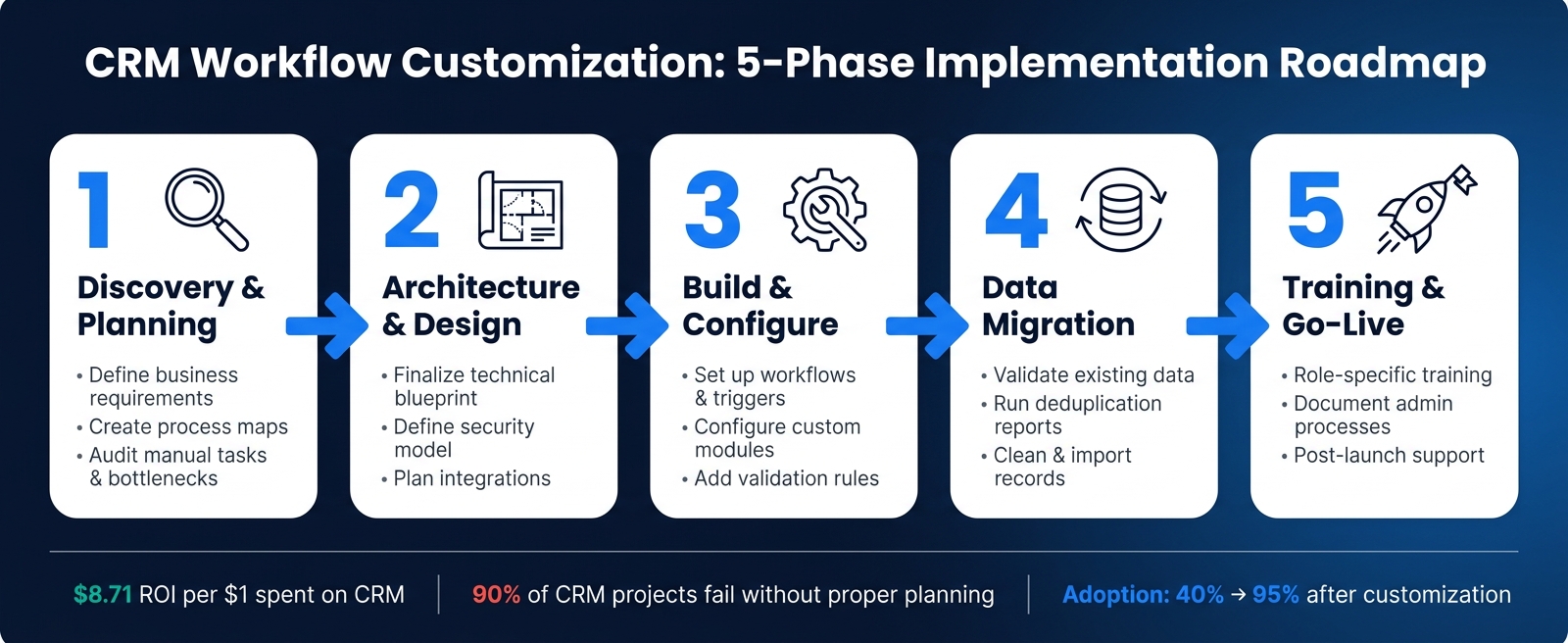
CRM Workflow Customization: 5-Phase Implementation Roadmap
Once you’ve set up AI-driven triggers and personalization, the next step is to establish a reliable system that keeps everything running smoothly. A structured rollout and consistent monitoring are key to achieving long-term success.
Implementation Roadmap
To effectively implement your CRM system, it’s important to take a phased approach. Jumping straight into configuration without mapping out your processes can lead to problems down the road. Start by auditing your current manual tasks to identify repetitive actions, bottlenecks, and areas of friction. Next, set clear, measurable goals – like reducing lead response time to under an hour. Before diving into the CRM, map out your trigger-condition-action logic on paper. Validate your progress through weekly sprints and test changes with a pilot group before scaling up.
Here’s a breakdown of the five main phases for implementation:
- Discovery & Planning: Define business requirements and create process maps.
- Architecture & Design: Finalize the technical blueprint, security model, and integration plan.
- Build & Configure: Set up workflows, custom modules, and validation rules.
- Data Migration: Validate your data and generate deduplication reports.
- Training & Go-Live: Provide role-specific training, document admin processes, and offer post-launch support.
"We tried using Salesforce out of the box for 6 months and it was a nightmare… Adoption went from 40% to 95% [after customization]." – Mark T., Managing Director, Real Estate Agency [4]
Testing and Monitoring Workflows
Once your workflows are configured, thorough testing and monitoring are essential to ensure a successful rollout. Begin by testing each workflow in a sandbox environment using real data. Start small – test one record, then expand to a small pilot group before rolling it out to everyone. This step-by-step process helps you catch potential issues before they impact real customers.
It’s also important to include a clear stop condition in every workflow to avoid endless loops. After going live, set up automated alerts to flag unusual activity, such as workflows triggering more often than expected. Additionally, configure alerts for stalled opportunities – for example, deals that haven’t progressed in 14 days. Monthly data quality audits are a must, as 44% of companies report losing revenue due to poor CRM data leading to bad decisions [3].
Ongoing Workflow Optimization
CRM workflows require regular fine-tuning to remain effective. Every 30 days, review key metrics like reply rates, drop-off points, and goal completion percentages. Conduct a more in-depth audit of customizations every quarter, aiming to remove 30–40% of redundant configurations. Applying the 80/20 rule can help you avoid unnecessary complexity.
Involve your daily CRM users in these reviews – they often notice issues that dashboards might overlook. To stay on track and prevent feature bloat, set three specific, measurable goals every 90 days. This keeps your CRM workflows focused and aligned with your business objectives.
Conclusion
Customizing your CRM workflows is not a one-time task – it’s an ongoing effort to ensure your system aligns perfectly with your business processes. Success depends on several key factors: mapping out your processes, maintaining clean data, implementing targeted automation, and committing to continuous improvement. Skipping any of these steps can lead to underwhelming results.
The numbers back this up. On average, CRM implementations yield $8.71 for every dollar spent [1][2], but over 60% of failures stem from people and process-related issues – not the technology itself [3]. This disconnect between potential and actual outcomes highlights the importance of thoughtful customization.
AI integration is transforming CRM capabilities, moving beyond basic automation to include advanced features like lead scoring, outcome prediction, and personalized customer interactions. However, building such a system often requires expertise. If your team lacks the resources to take your CRM to the next level, CRM Experts Online can help. They specialize in transforming manual, disjointed workflows into AI-driven systems that act as revenue engines. Their in-depth audits pinpoint where automation can deliver maximum value, offering an 8–15x ROI potential within six months [6]. Plus, their managed support plans provide on-demand access to CRM and AI expertise, eliminating the need for a full in-house development team.
FAQs
What workflows should I customize first?
Start by tailoring workflows for repetitive tasks prone to errors or requiring a lot of manual effort. Prioritize areas like lead assignment, automated follow-up reminders, and deal stage updates linked to critical milestones. These adjustments can save time and reduce mistakes.
Take the time to document your current processes to pinpoint bottlenecks or inefficiencies. Once identified, test your workflows extensively before rolling them out completely. For added support, CRM Experts Online provides consulting services and AI-driven tools designed to simplify operations and enhance team productivity.
When should I use custom objects versus custom fields?
Use custom fields when you need to attach single data points – like NPS scores or specific dates – to existing records in a one-to-one relationship. On the other hand, opt for custom objects when you’re dealing with entities that have their own lifecycle, require one-to-many relationships, or need independent workflows. Examples might include managing subscriptions or tracking loan applications. If you’re unsure how to streamline your CRM data model, CRM Experts Online can assist in creating a system that avoids unnecessary complications.
How do I prevent AI automations from making poor decisions?
To ensure AI automations make sound decisions, it’s crucial to start with clean, accurate data that truly represents your business operations. Define lead lifecycles with precision, maintain consistency in data entry, and set clear audit boundaries to protect critical attributes from being overwritten.
Implement specific triggers, use loop-breaker conditions, and design single-path workflows to minimize the chances of errors. Additionally, incorporate error-handling mechanisms and always test your workflows in a sandbox environment before deploying them live. This approach helps ensure your automations run smoothly and reliably.
Related Blog Posts
- How AI Improves CRM Resource Utilization
- How AI Improves CRM Workflow Efficiency
- CRM-ERP Integration: Workflow Automation Benefits
- Best Practices for CRM Workflow Automation

CRM & ERP Enterprise Technology Expert and Entrepreneurial Executive with 20+ years of leading CRM, ERP, Customer Experience, and Block-chain initiatives and projects across internal and customer facing technologies. Proven success in closing large deals in Pre Sales customer facing engagements and deploying enterprise wide CRM & Customer Experience solutions internationally and domestically.